| x Chat |
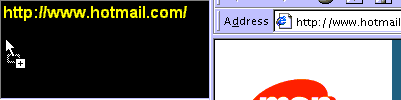
You can refer a website to your partner by drag the URL to your windows. (Drag & Drop)
Click the first button or 'Ctrl + O' and type the IP address to connect.
Drag selected text and drop into the upper window, it will copy the text to your window.
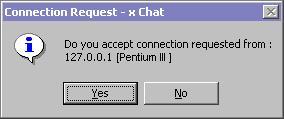
You can minimize x Chat. When there is a connection
coming, x Chat will pop-up automatically
.
When you resize x Chat to a smaller window. Toolbar can be customized to remove buttons by double click on it.
Check your IP address in File - Properties.
You may define your own instant messages in Tool - Options - Message.
You can adjust chat windows sizes by dragging the horizontal bar up or down.
Customize the attention bell as you like in Tool - Options - Misc.
You can turn on/off the incoming URL webcheck feature
in Tool - Options - Misc. While there is an URL coming, your default browser
will connect to the site automatically.

Press Ctrl G to active the bell.
Save the important chat record before you exit the program.
If you are going to leave the computer for a while, you can use the customized instant message to notify your partner.
You can set x Chat load at startup and show in system tray only.
Double-click a window will jump to the end of screen.
| x Draw |
Using x Draw for showing pictures of map, chart, or
even your desktop (screen capture).
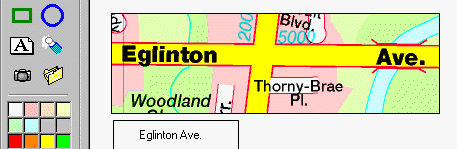
You can fill a rectangle and circle with colour by
using spotting.
You can press ALT G to make a attention bell ring to your partner.
Drag a single line of text or URL and drop to your message box, it can save your
time to type.
The thickness of the line, rectangle and circle can be customized by adjusting
the number in the thickness box.
The background can be change to any colour you like.
When you add an image, do not make it too large to fit on the drawing area. You cannot draw on the image.
If the drawing is so messy, you can use eraser, right-click to erase all the objects.
| File Transfer |
Drag a file to remote user's window, it will send the file to remote user.
You can always 'pause' the file transfer and resume it
as long as the connection is active
.
| Net View |
Right click on Net View to active right button menu.
Double an address to chat.
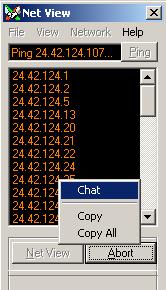
You can drag and drop to main x Chat window.
| Net Resolve |
Use Net Resolve
to translate IP address and Host address.

You can drag and drop to main x Chat window.
| AutoConnect/AutoIP |
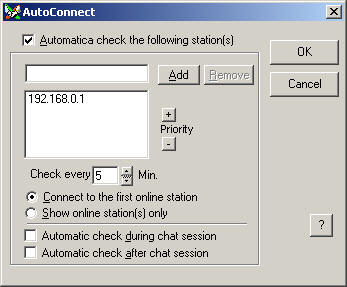
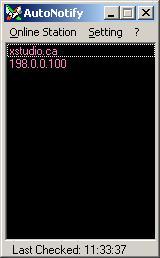
AutoConnect feature can let you check online status of your partner every few minutes interval.
Auto check
remote IP address and notify you any online partners.
| URL History |
URL list can be edited to add descriptions and saved in a text file.
| Security |
If you are going to leave the computer for a while, you can lock your chat session by minimize x Chat. Password can be set in security option. See Demo.
You can send confidential data to your partner by turn on Encryption feature.
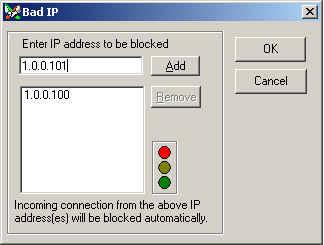
You can block several users to connect to your computer
by adding them to the block list. (File - Properties - Block IP)
There are more features for you to explore!!